Files
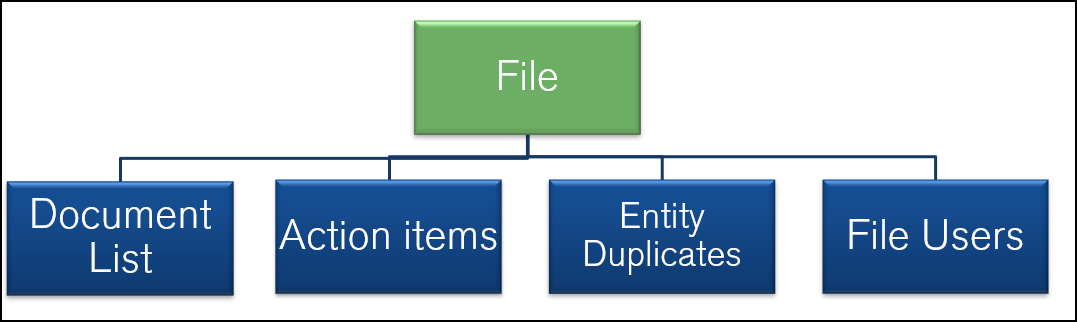
Files are added to a Department. A File represents a collection of related information including Documents and is where the File's users and Entity Duplicates are managed.
Articles in this Topic
| How to Access Files | The File |
| File Menu | File Details |
| File Documents | Duplicates |
| File Users | Edit File Details |
| Make a File Read Only | Edit a Read Only File to enable Updates |
| Edit User | |
| Watch the videos |
Related Articles
| Add A New File | Adding New Documents |
| The Entity Profile | File Entity Duplicates |
 How to Access Files
The following methods can be used to access Files. Users must have the required permissions to access Files via any of these methods.
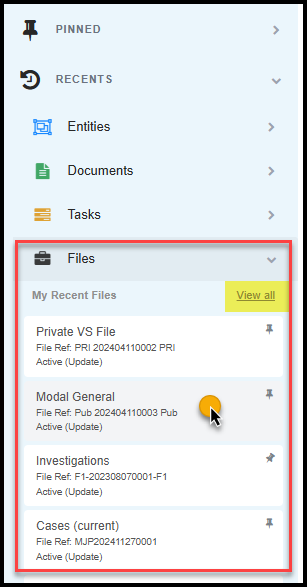
- Recent or Pinned Files this list can be found with Files selected. On the Homepage the Files list is shown at the top. A listed File can be accessed by clicking on the File Title
- View All Files - to view a list of all Files, from the Homepage Files list or from the top of the ' Recent and Pinned Files' list, click on 'View All' (even if there is nothing showing in the list). File access permissions apply.
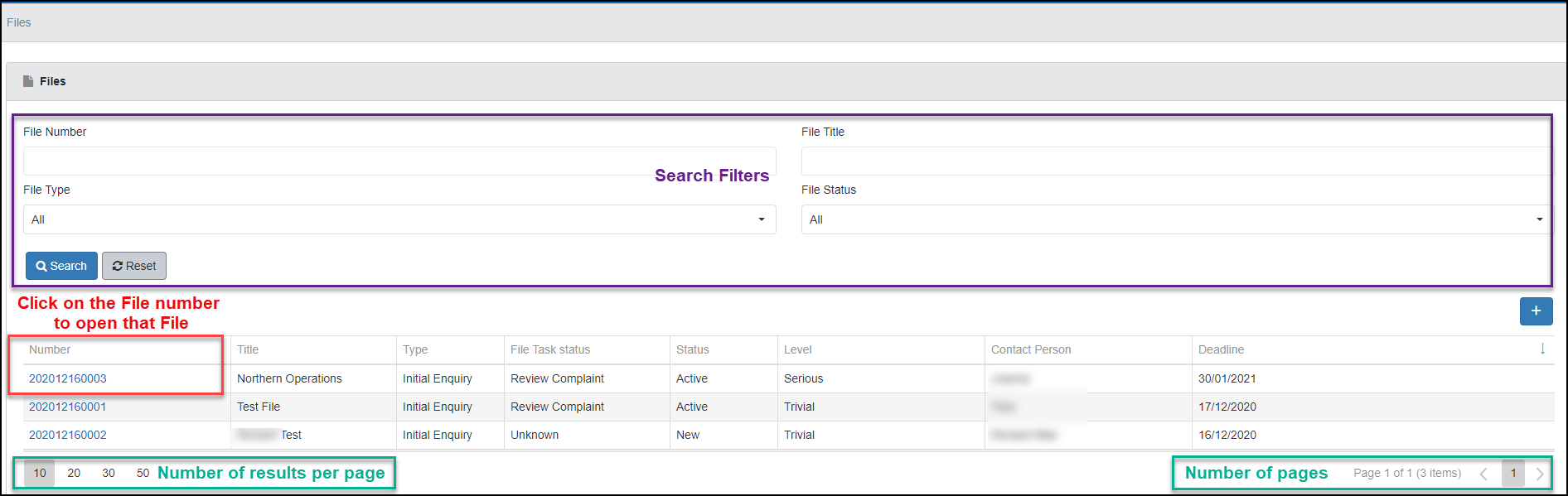
All Files (that the User has permissions to access) can be accessed from the Files page.
Files can be searched for using any or all of the search filters shown. Set the search criteria then click Search. The results listed can be sorted per column by clicking into the column header.
To open a File click on the File number.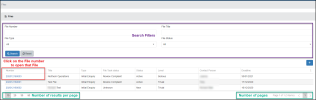
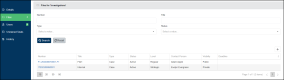
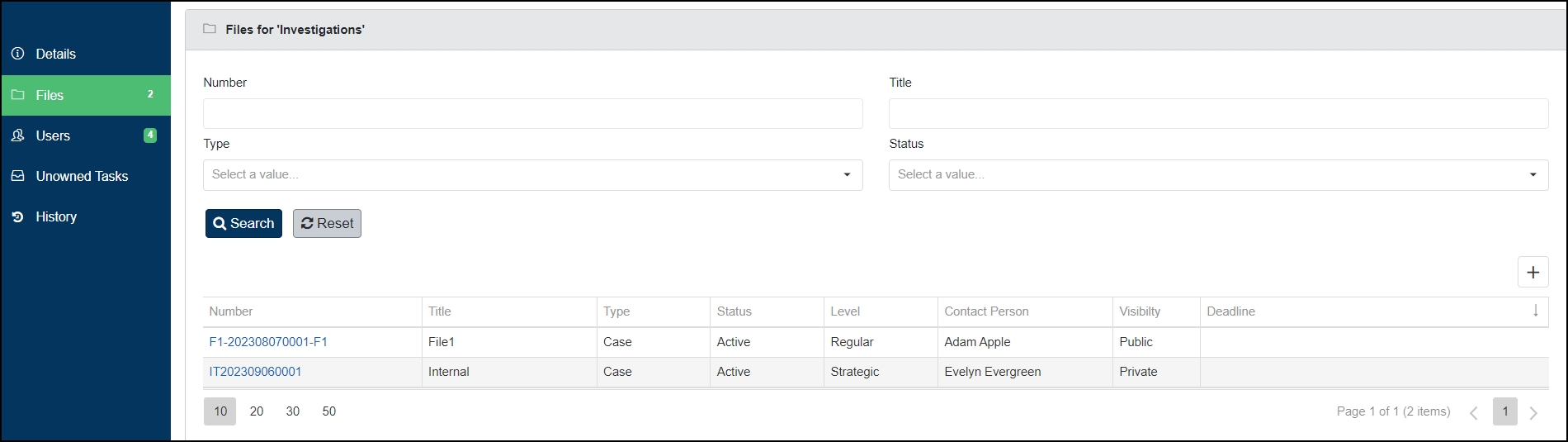
- Department - Files can be directly accessed from their respective Department, this method will only show the Files belonging to the selected Department.
Open the Department and select Files from the left menu to see a list of the Department Files. Permissions apply to access the Department.
Click on a File number to open the File selected
.
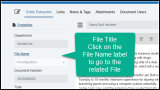
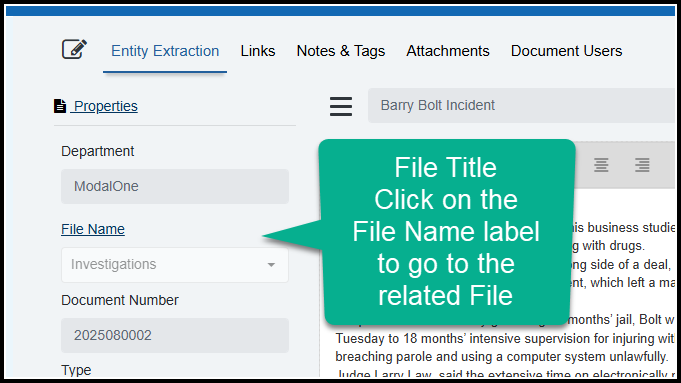
- Documents - from a Document, the File that the Document belongs to, can be accessed by clicking on the File Name label shown in the Document details - or from My Recent Files by selecting the File icon to view your recent and or pinned Files.
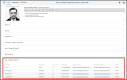
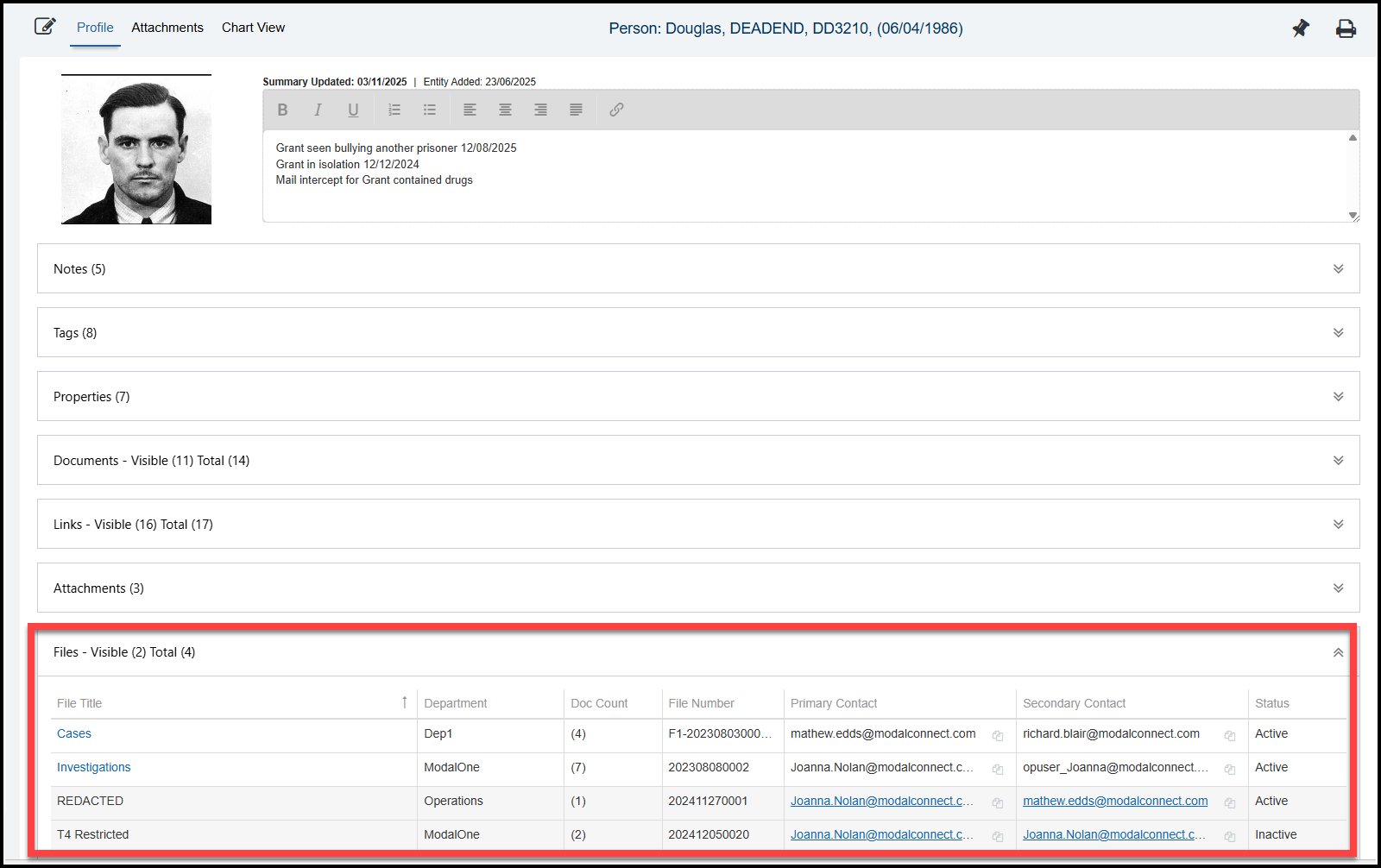
- Entity Profile - Files (of related Documents of an Entity) are listed at the bottom of the attributes available on the Entity Profile page.
 The File
When selected the File will open on the File Details page.
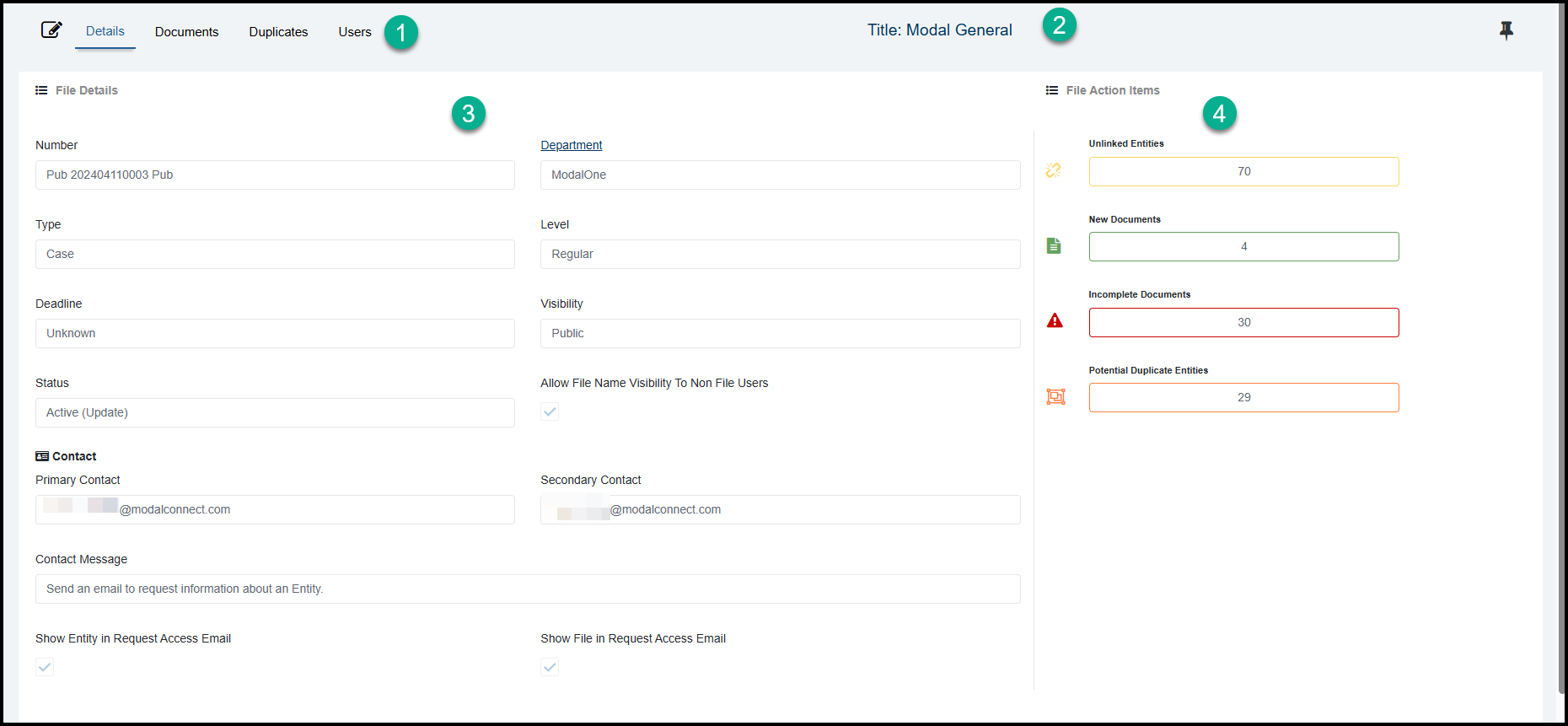
The File details page shows the following details.
- File Menu
- The File Title
- File Details
- File Action items
File Menu
The File menu lists the other attributes of the File. Clicking on a menu item opens the selected File page.
- Details - File information
- Documents - belonging to the File
- Duplicates - potential duplicate Entities
- Users - for managing the File Users
File Details
The information on the details page displays in 'view only' mode.
The File details include; (some items only show when the File is in Edit mode).
- File Title
- Department that the file belongs to
- Number prefix and/or suffix (optional) - (in Edit mode)
- Type
- Level
- Deadline
- Visibility Public or Private.
Public - any User from the Department can access the File's Documents and Entities
Private - only Users who are members of a private File can access the File's Documents and Entities. - Visibility checkbox - if checked the File Title will be visible in the Entity Profile's Files list . If unchecked the File Title shows as 'Redacted'
- Status - Update or Read Only.
Update: All of the File's Documents and Entities, links, notes & tags and attachments can be updated.
Read Only: All of the File's Documents and Entities, links, notes & tags and attachments are locked and can not be updated. - Contact - Primary and Secondary Contact. These contacts can receive emails and notifications from users requesting information about an Entity Profile (where the related Documents are not visible to the user).
- Contact message - instructions or contact information that can be viewed in an Entity Profile where/for a user that does not have File permissions but the Entity has Documents (that are not visible to the user) belonging to the File and may wish to request information.
- Show Entity in Request Access Email; If enabled the Entity Profile Title/Name is included in the Access Request email received by a File Contact.
- Show File in Request Access Email; If enabled the File Title/Name is included in the Access Request email received by a File Contact.
Edit File Details
To edit the File Details click the Edit button above to open the Edit File panel. The only fields not editable are the Department and the auto-assigned number - the number prefix or suffix may be edited. User permissions apply for editing rights.
Pin File - click the pin on the details page (or from the Recents Files list) to add the file to your Pinned Files list.
Changing the File Title \ Name.
If the File Title - Name is changed, this also updates the File Title against all existing Documents and their Entities of the File.
Once any edits have been made click the Save button to save the changes or Finish to both save changes and close the Edit panel.
Clicking Cancel will discard any unsaved edits and / or close the Edit panel.
Make a File Read Only
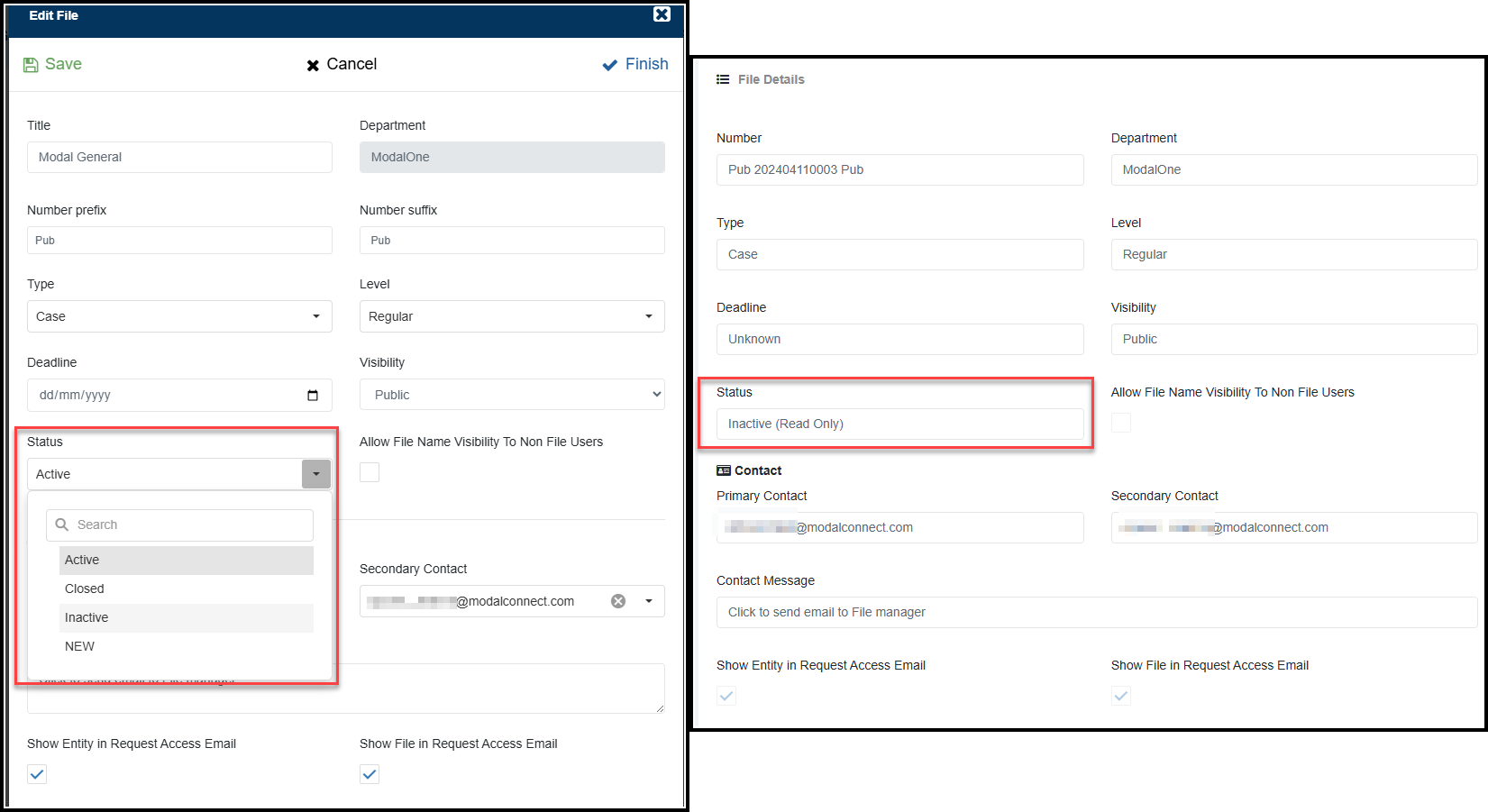
Where your Organisation has assigned the Read Only action to a File Status name, a File's status can be edited in the Detail and changed from Update to Read only. This the puts all of the Files Documents (and their attributes) into Read Only mode and a padlock shows against all of its Documents. No edits can be made to the Documents, Entities, Links, Notes and Attachments. No Documents can be added or transferred to the File.
A File's status can be edited in the File details, by users with the Edit a File permission.
In the File on the Details page select Edit then select the required Status (e.g Inactive, Closed) and Save changes.
The selected status action will apply when the edit has been saved.
Note: If Documents of a File are currently being edited and those edits are saved after the File Status Action of Update is changed to Read Only, those Document Edits will still be saved.
It is recommended to make any File Status Action changes at a time of low activity e.g at the end of the work day or advise users not to make changes to Documents of the affected File(s) at the time of the change.
Edit a Read Only File to enable Updates
To change the status of a Read Only File to enable updates to be made to any of it's Documents, Entities, Links, Notes and Attachments, edit the File's Details and change the Status to one that enables Updates. This option can also be useful to temporarily enable updates to Documents from a Read Only File whilst bearing in mind that any other user with access to the File's Documents may also edit them.
File Documents
The Documents page lists all Documents of the File.
The number of times the same Document is listed depends on how many active Action items a Document has (the Action item icon on the left of the list). For example if a Document has 2 pending Action items then it will appear twice in the list or if it has 3 Action items it will appear three times.
The Action items represent Documents that are or have;
- Unlinked Entities - the number of Entities that have no linked Associations
- New Documents - any Documents of the File with no Entities added to it
- Incomplete Documents - Documents that have not been marked as complete
- Potential Duplicates - the number of potential Entity duplicates
Click on an Action item from the top of the table to filter the document list by the selected Action item. Click on the same Action item to remove that filtering or to clear all filtering click the refresh - Show All button to the left of Details.
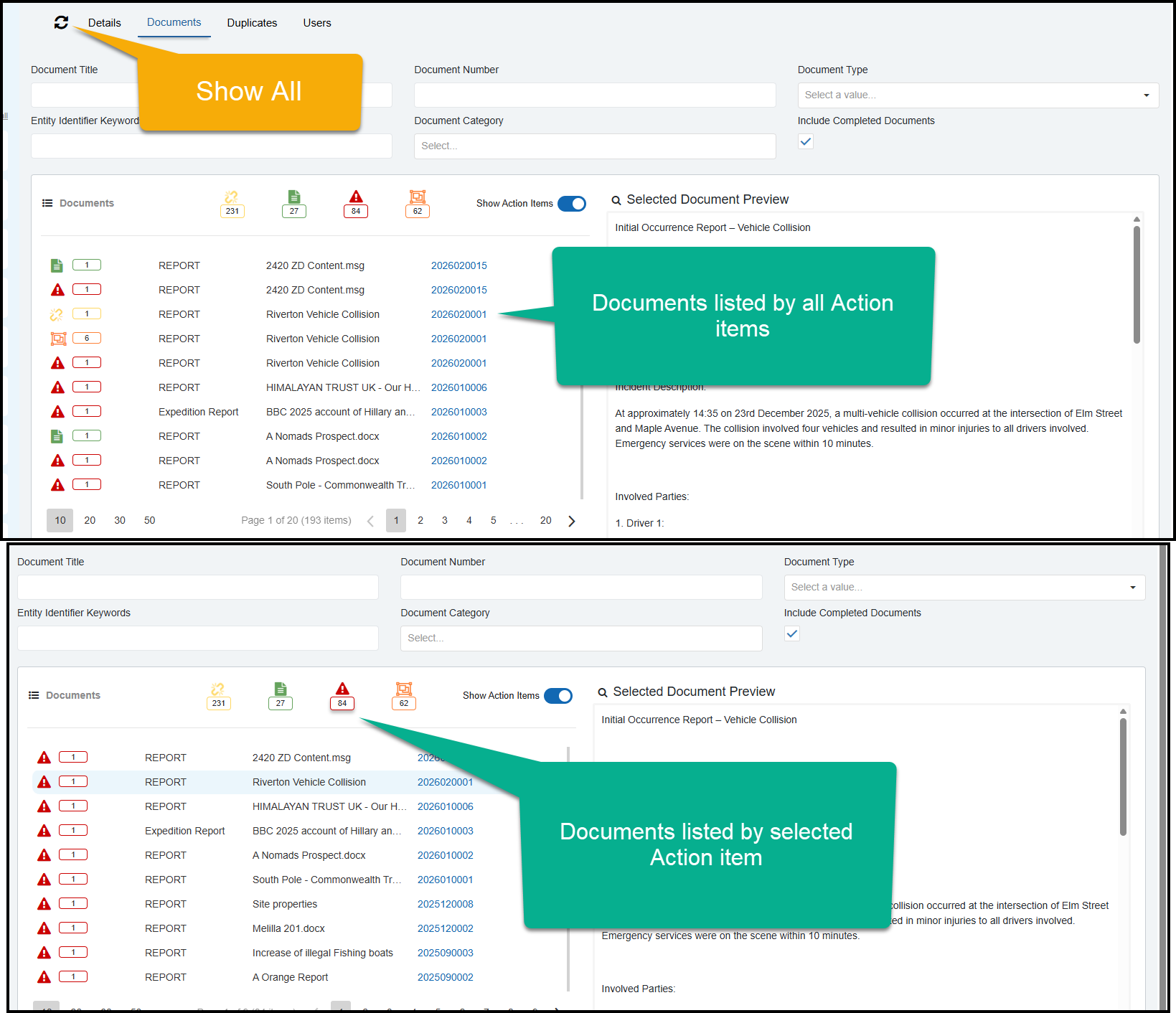
Document List
The Documents listed show the following details from left to right;
- Action item symbol and count
- Document Type
- Document Title
- Document Number (linked to the document)
Clicking on a list item shows that document's content in the preview pane on the right
To filter the results by an action item, click on the action item total (above the list).
Clicking on the item a second time clears the action filtering or click on the Show All refresh button in the menu.
To just show the Document list without the Action items (so each Document is listed only once) toggle the Show Action items off. Toggle back on to return the Action items.
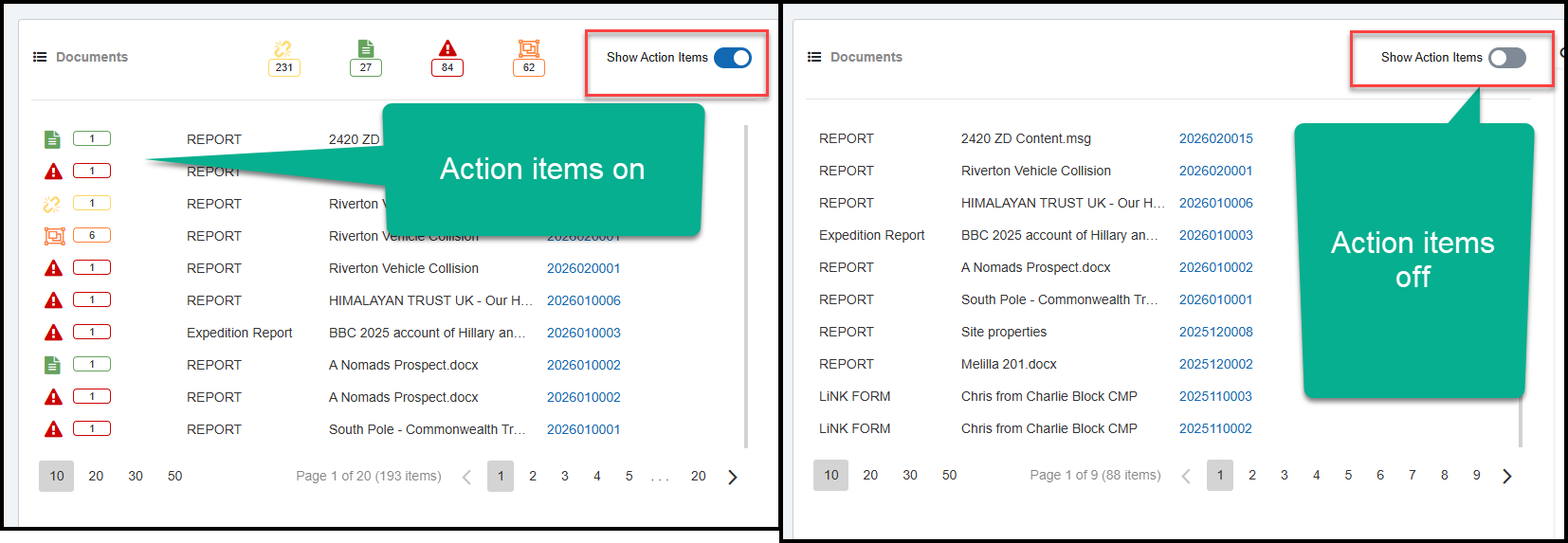
Filter Results
Results can also be filtered by the following filters (singly or in combinations)
- Title - enter the title and click Enter
- Number - enter the document number and click Enter
- Type - select a document type
- Entity Identifier Keywords - enter search terms for an Entity and click Enter
- Category - select
Include Completed Documents (in results) is pre-checked. Unchecking this will remove any completed Documents from the results list and only show those documents with Action items.
Clear all filtering by clicking the Show All refresh button on the left of the Documents page menu.
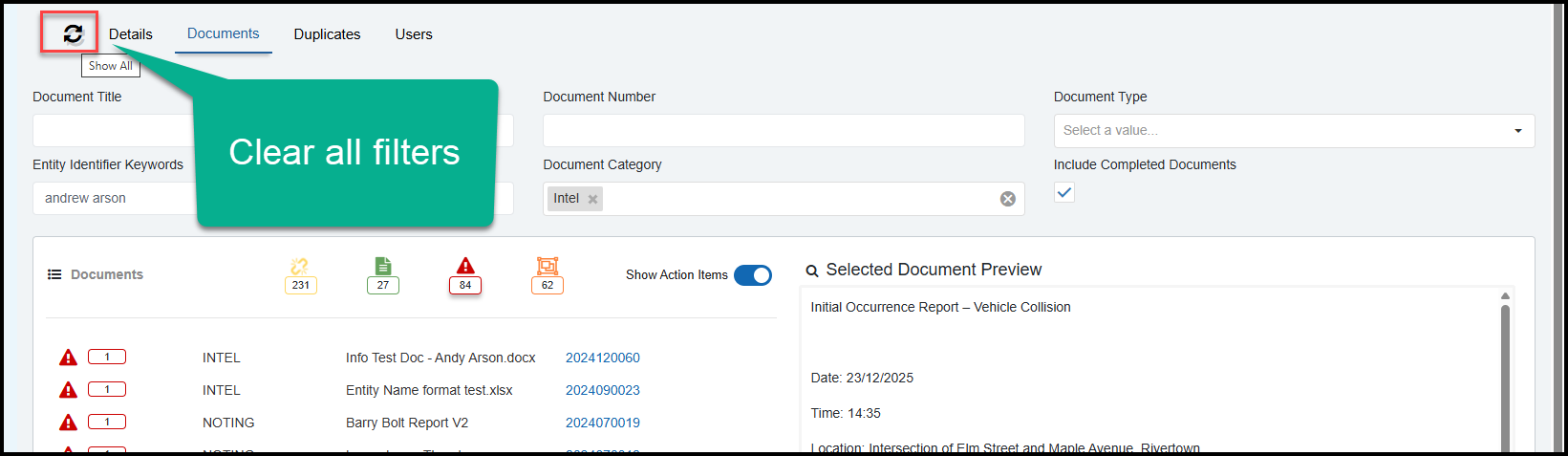
Preview Document
To view the Document content in the Preview pane on the right, click on the line (but not the number) in the listing.
Open Document
To open a listed Document click on the Document Number.
Add New Document to File
To add a new Document to the File - from the main menu at the top of the page, select New and then Document.
See this article - Adding New Documents
To learn more about Documents - select the Documents help topic from the left menu or see this article - Documents
A list of all Documents (that you have permissions for) of a File can also be viewed on the All Documents page (select View All from the My Recent Documents list) and filter by File name.
Duplicates
Duplicates are Entities that have been identified from the File's Documents as being potential duplicates.
Potential Duplicates can be merged into an existing Entity. Managing Potential Duplicates is explained in this Topic - File Entity Duplicates
File Users
Whether to add Users to a File depends on the visibility of a File e.g whether it is Public or Private and the permissions of the User's role.
If a File is Public, then any user from the Department (that the file belongs to) will be able to access the File and or it's Documents and Entities or to add new Documents to the File.
If the File User is to have File (Public or Private) edit permissions to manage the File Details, File Duplicates and/or File Users they must be added as a File user.
If a File is Private, then users must be added to the File to enable access to it and/or it's Documents and attributes including Entity Profiles or to add new Documents to the File.
The Users page displays a list of Users that have been added to the File.
The list shows the following User detail; User Name, Status of the account, File Role, Source Type.
The list can be filtered by selecting a Role type (above the list).
To clear filtering click 'Show All' (refresh icon) in the File menu.
Add User
To add a User to the File, the User must already be a member of the Department that the File belongs to.
Click on the Add User button from the top right of the list, this opens the 'Add User' panel.
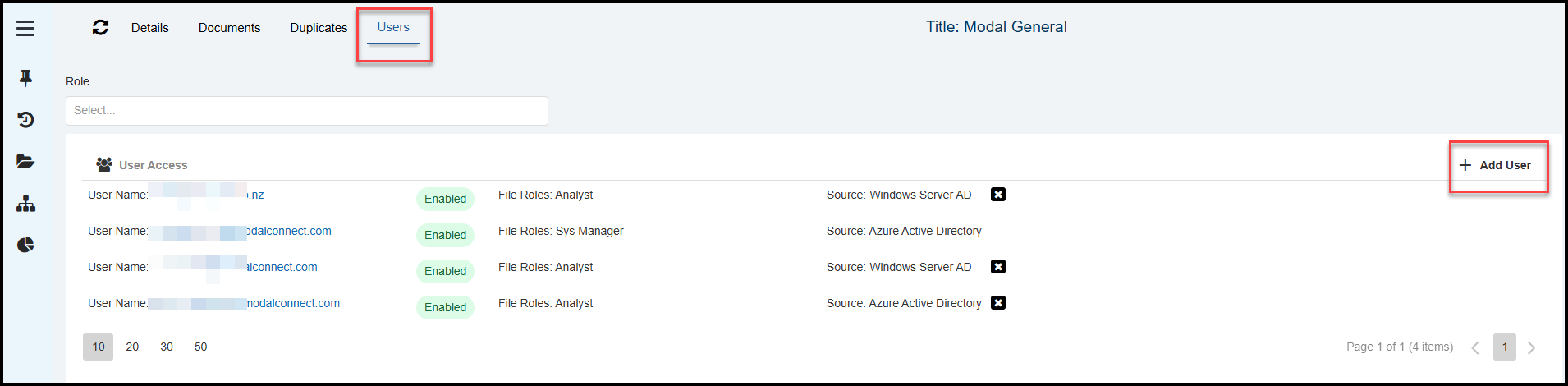
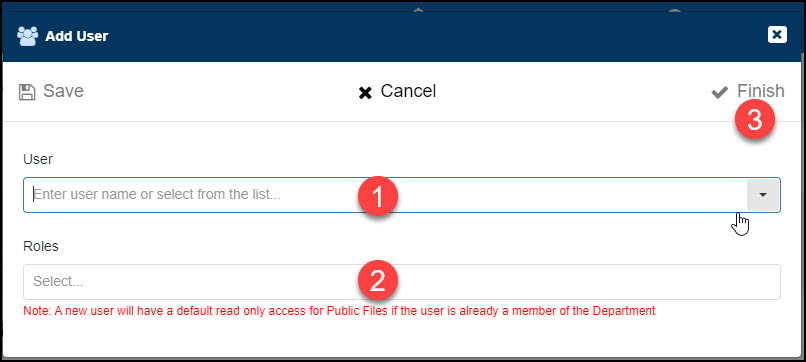
- Select the User
- Select the appropriate Role and click OK.
- Click Save and then Finish to save and close the panel and the User is added. Cancel discards any changes and closes the panel.
User Security Update Once the User has been added, a system security update starts running for the File's Documents and Entities that the User has permissions for and the Status shows as processing. Depending on the number of Documents and Entities this process can take a few hours. (this process runs automatically in the background so it is safe to navigate away from this page or close the application). Once completed, the Status updates to Enabled.
- Enabled: User account has been processed successfully and is now enabled.
- Processing: the User account is being updated.
- Error: an issue has occurred- contact the Modal Helpdesk
Edit User
The Users listed can be edited where the current logged in User has the required File User edit permissions. To edit, from the list of Users click on the User Name which opens the Edit File User panel where the User Role may be edited by either adding or removing Roles - there must be at least 1 Role assigned to Save.
Remove User
To remove a User from the File, click the  at the end of the record and confirm. The User is removed from the File.
Users are unable to remove their own user record as this would prevent access to the File and all it's Documents and Entities.
Watch the videos
Viewing Tips
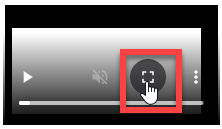
To view a video at full screen, click on the 'Full screen' button.
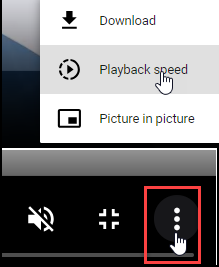
To adjust the playback speed (decrease or increase) click on the 3 dots and select Playback speed.
Captions display best if the mouse or touch-pad are not moved or engaged once playing.
Videos have no audio.
| File Action items | File Users |
| How to make a File Read Only | |